
Windows Account Lockout Policy Disable/Change:
If you get this Message while try Login via Remotedesktop
"As a security precaution, the user account has been locked out because there were too many logon attempts or password change attempts. Wait a while before trying again, or contact your system administrator or technical support."
Or if you're unable to login over Remote Desktop, then it's due to the default lockout policy for your OS install being set to lock the account temporarily after so many login attempts. You can either disable the lockout policy completely or change it to a different threshold.
Follow the guidlines from the Pictures below or go to the following group policy setting in your Windows server:
Settings > Edit Group Policy > Group Policy > Computer Configuration > Windows Settings > Security Settings > Account Policies > Account Lockout Policy > Account Lockout Threshold
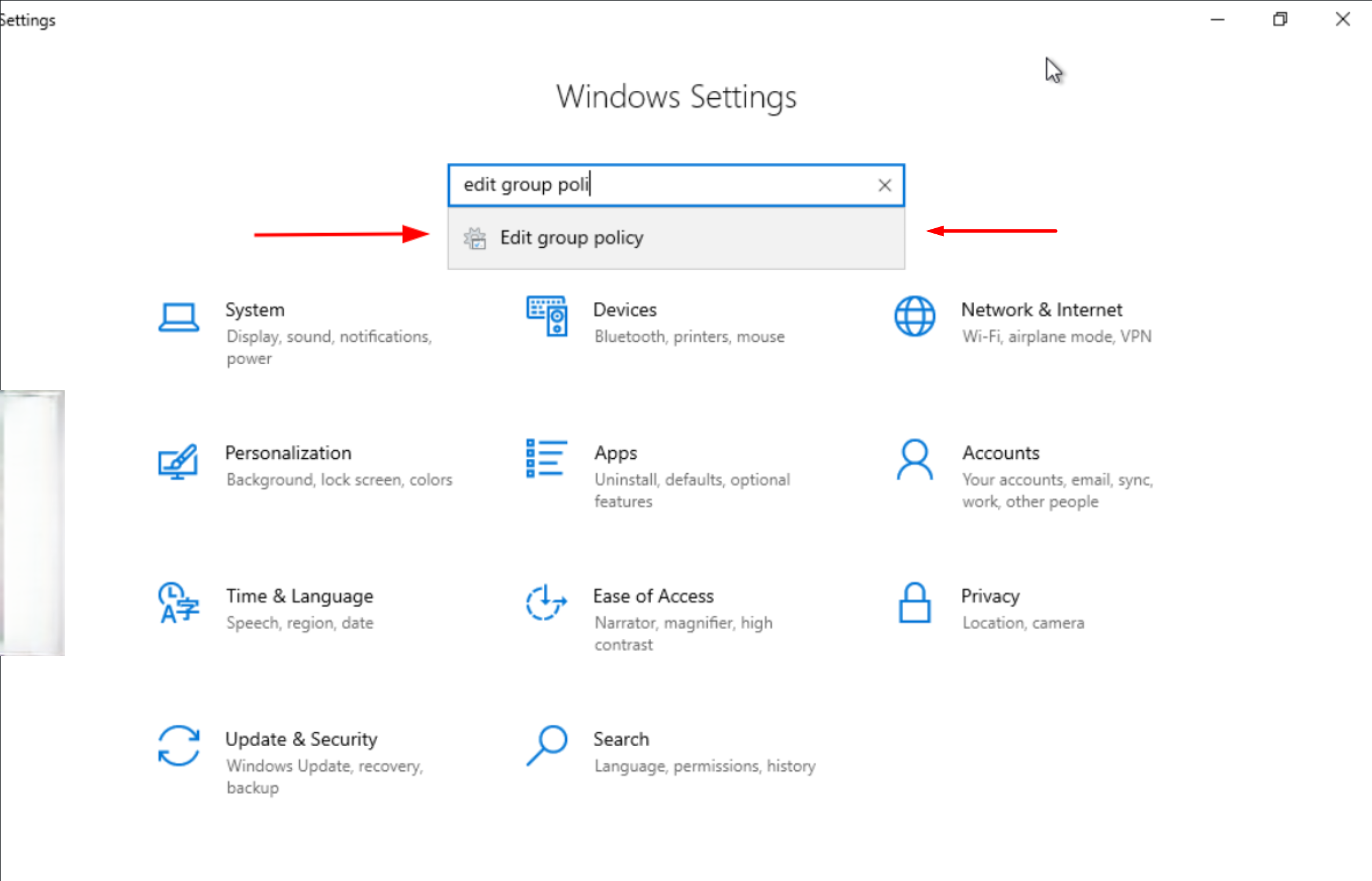
Settings > Search for: Edit Group Policy Group Policy
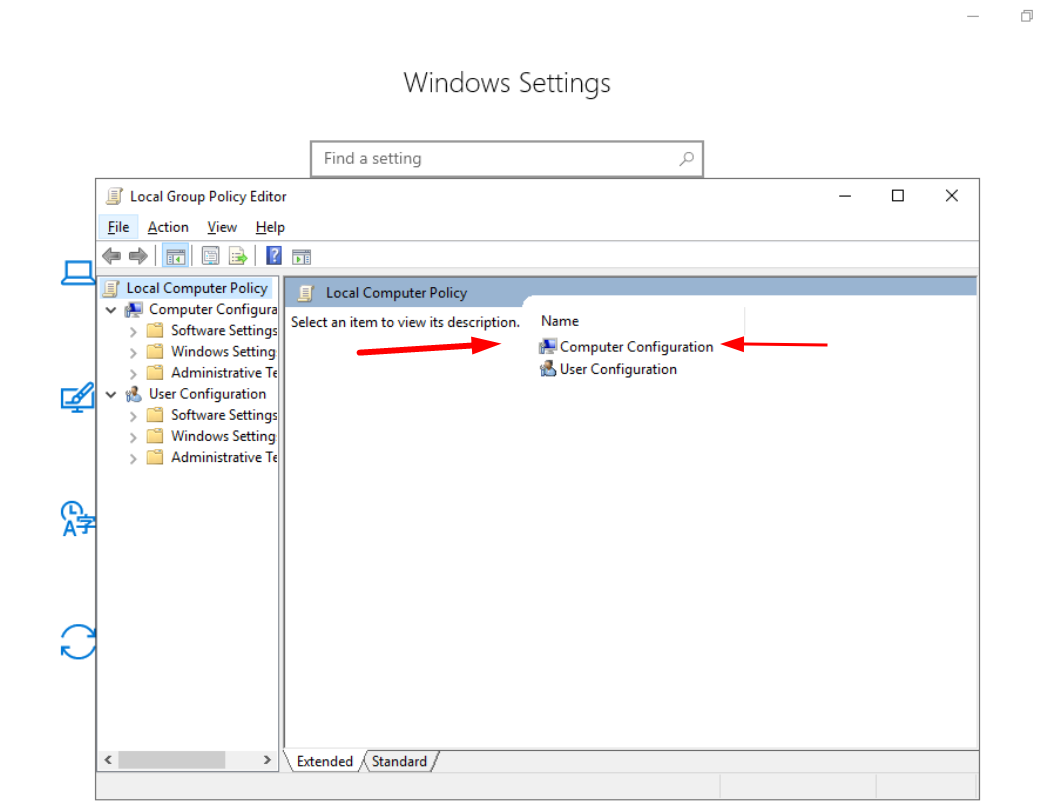
Click on "Computer Configuration"
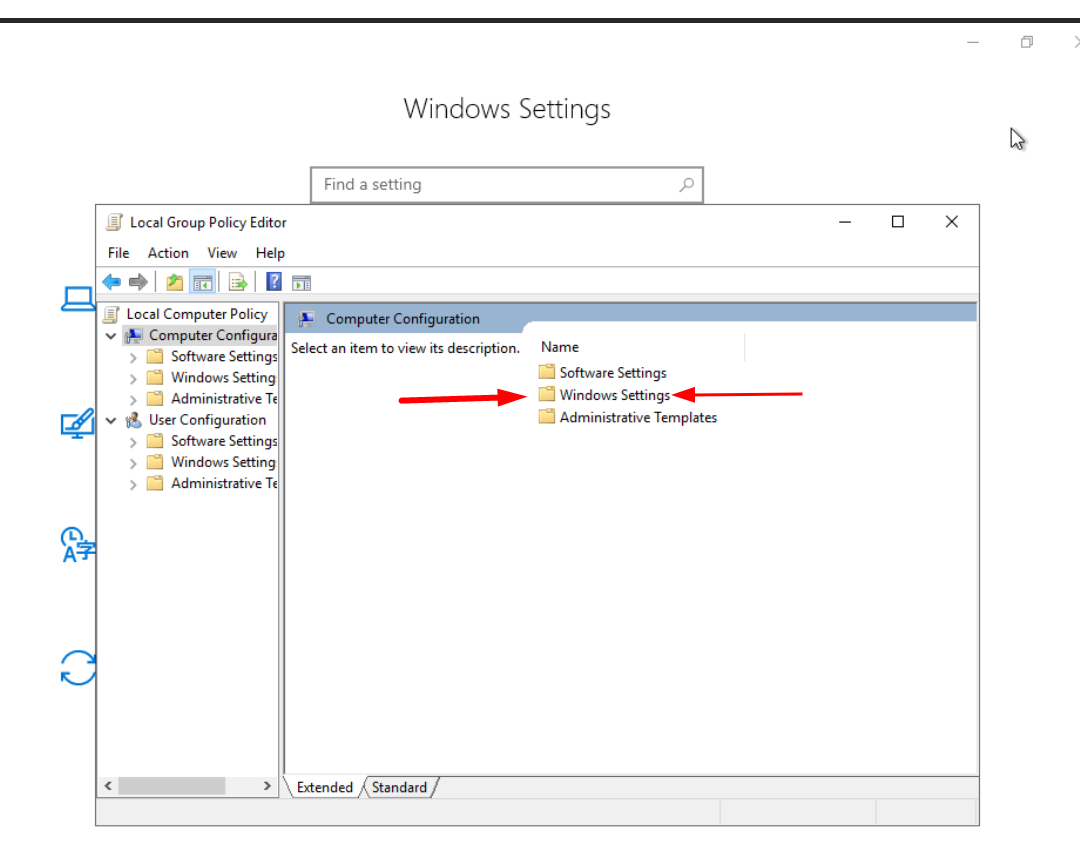
Windows Settings
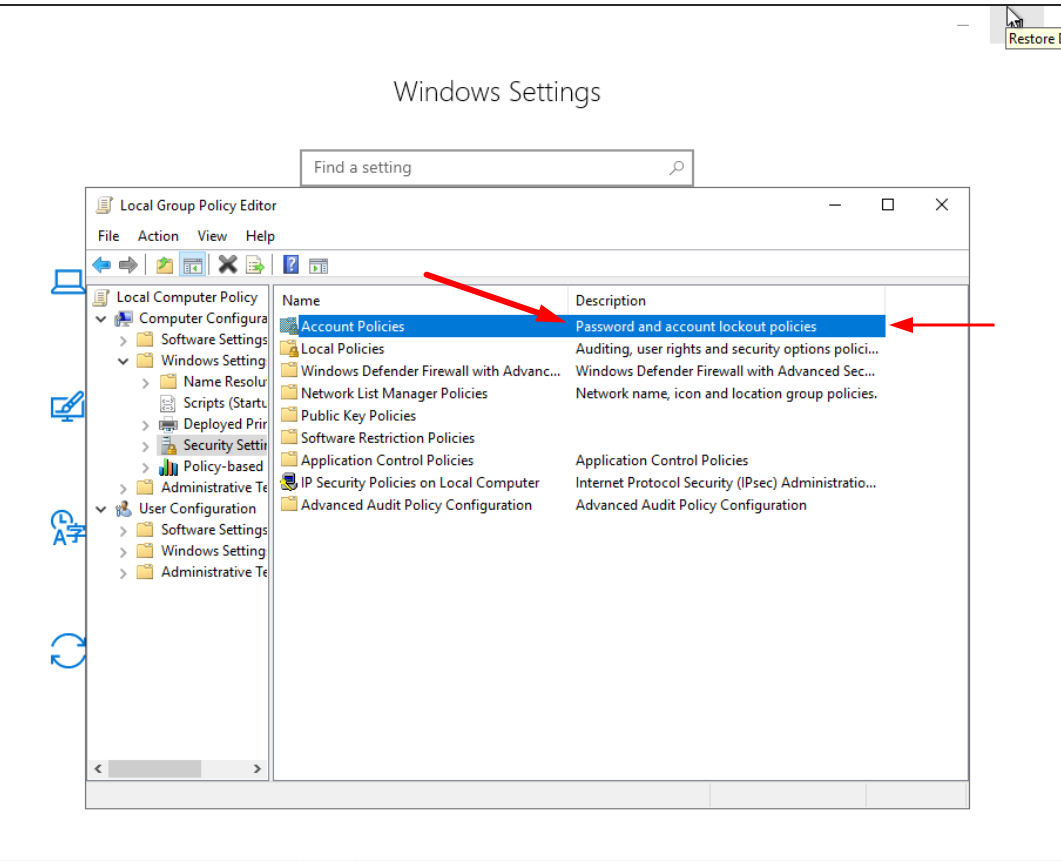
Account Policies
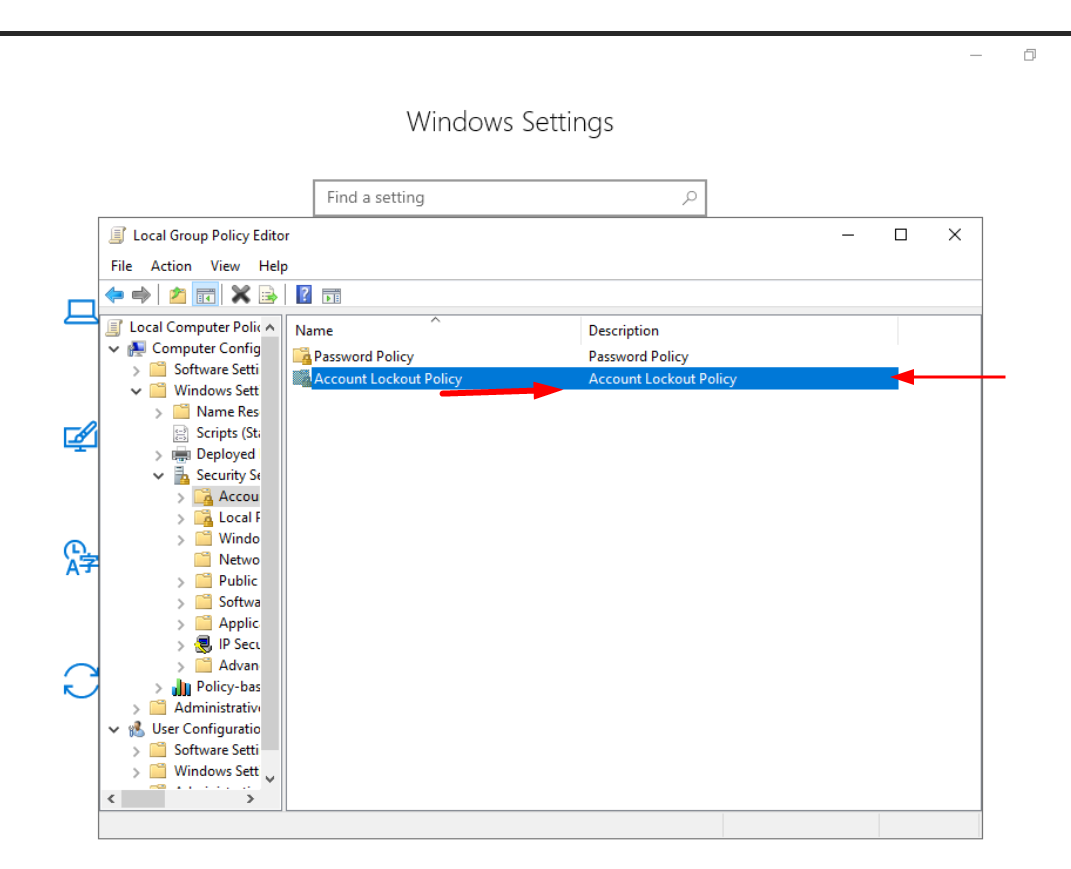
Account Lockout Policy
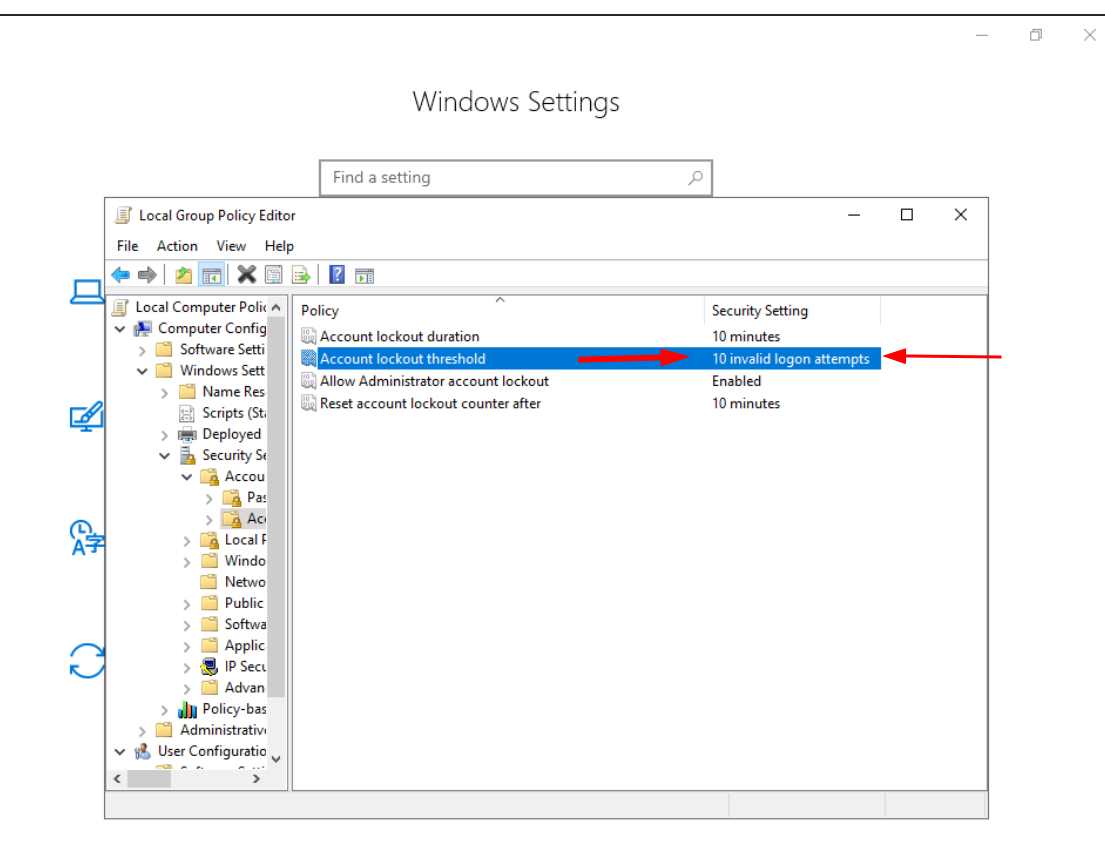
Select Account Lockout Threshold
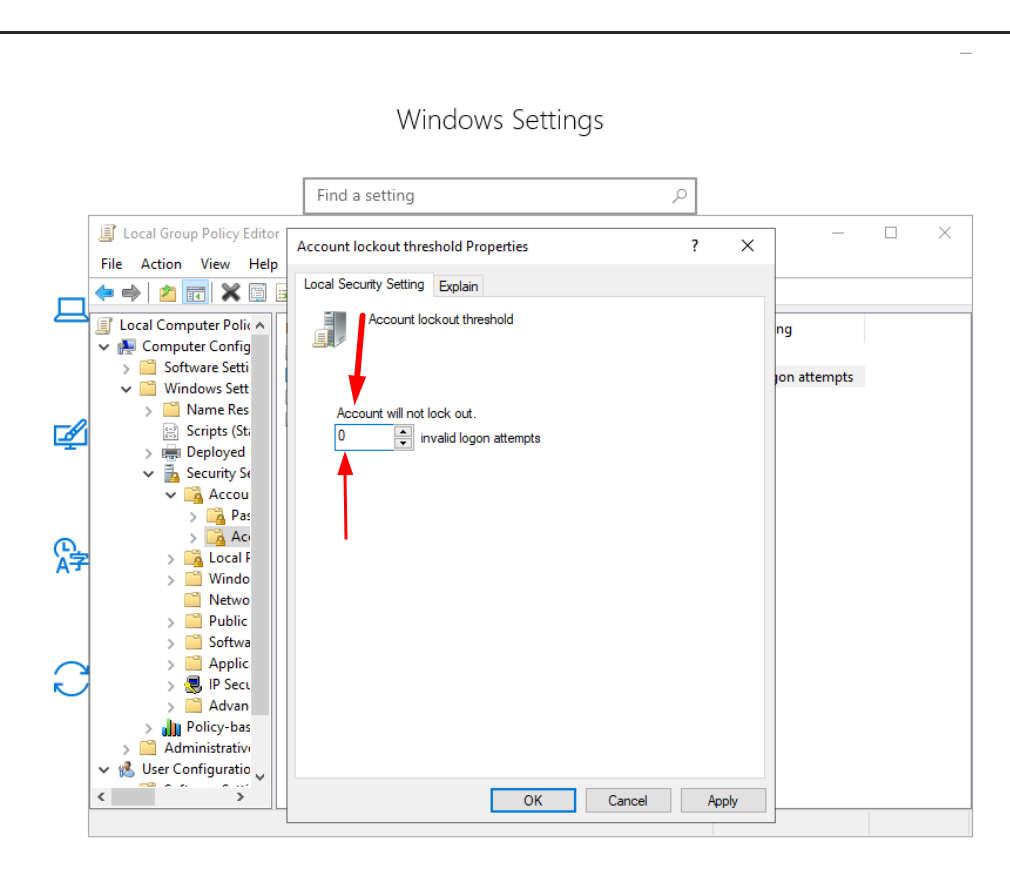
Change it from 10 to 0